Operating System (OS)
.jpg)
Operating System (OS)


History of operating system
1940s-1950s: Early Days
No formal OS existed; programs were run directly on hardware.
The first rudimentary "operating systems" like GMOS (General Motors Operating System) managed simple batch processes.
1960s: Multiprogramming and Timesharing
Key innovations like multitasking and time-sharing emerged.
Systems like UNIX (created at Bell Labs in 1969) became groundbreaking for their portability and flexibility.
1970s-1980s: Personal Computers Rise
Microsoft introduced MS-DOS in the early 1980s, a command-line OS for personal computers.
Apple launched its Macintosh OS in 1984, introducing graphical user interfaces to the masses.
1990s: Modern Operating Systems
Microsoft Windows gained dominance with Windows 95, offering a blend of GUI and multitasking.
Linux, an open-source OS inspired by UNIX, gained popularity for developers and enterprises.
2000s-Present: Diverse Ecosystems
Smartphones led to operating systems like iOS (Apple) and Android (Google).
Cloud-based OS and virtual machines, like ChromeOS and Windows Subsystem for Linux (WSL), became widely used.
Network Operating System (NOS) and Client Operating System (COS):
Network Operating System (NOS):
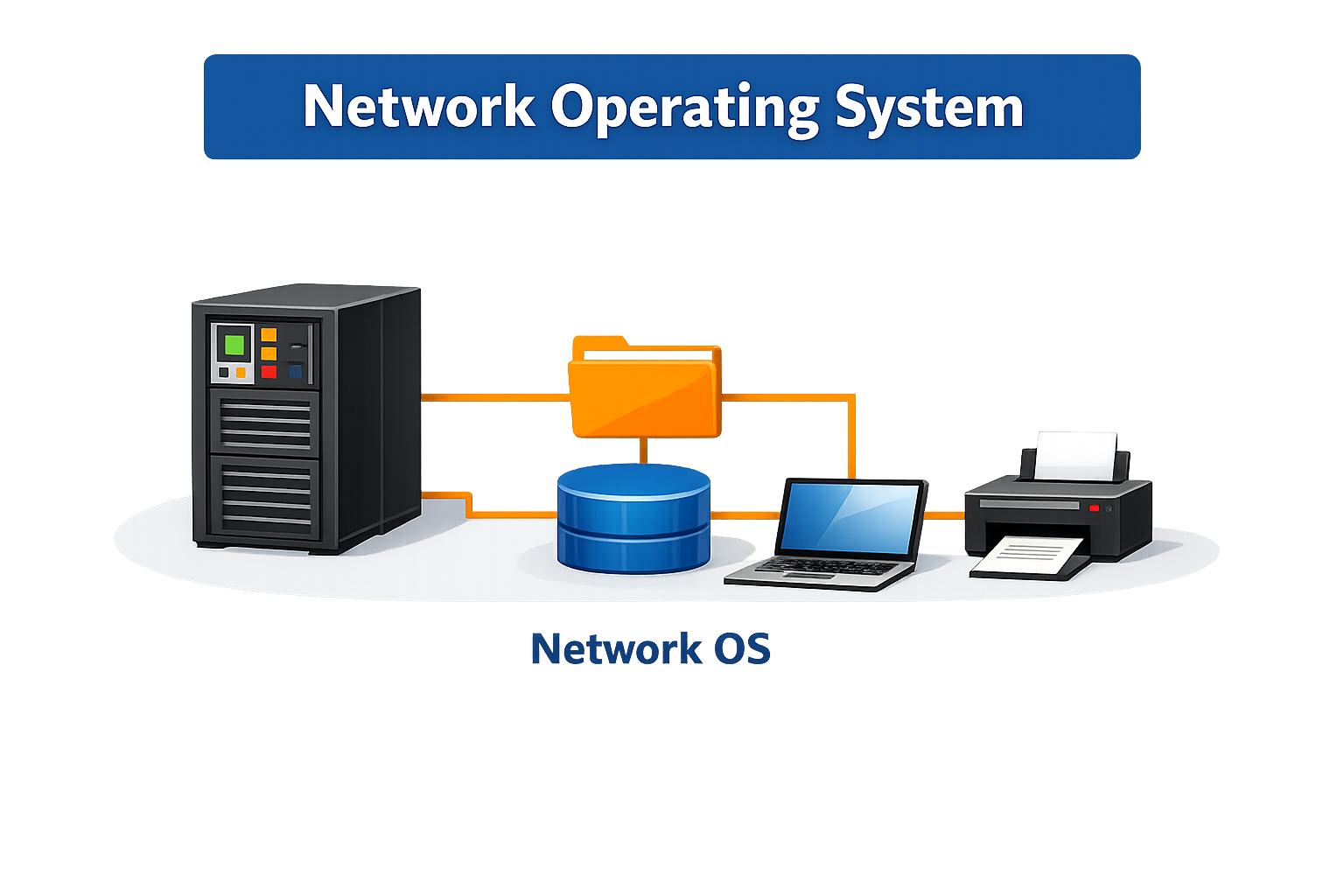
Designed to manage network resources and enable communication between devices connected to a network.
Used primarily in servers to handle tasks like file sharing, printer management, user authentication, and overall network administration.
Examples: Windows Server, UNIX, Linux Server, Novell NetWare.
Novell NetWare: 1983
Microsoft Windows Server:
Windows NT 3.1: 1993
Windows Server 2008: 2008
Windows Server 2022: 2021
Windows Server 2025: 2024
UNIX (Various Distributions):
AT&T UNIX System V: 1983
Sun Solaris: 1991
Linux-Based NOS:
Red Hat Enterprise Linux (RHEL): 2000
SUSE Linux Enterprise Server (SLES): 2000
Client Operating System (COS):
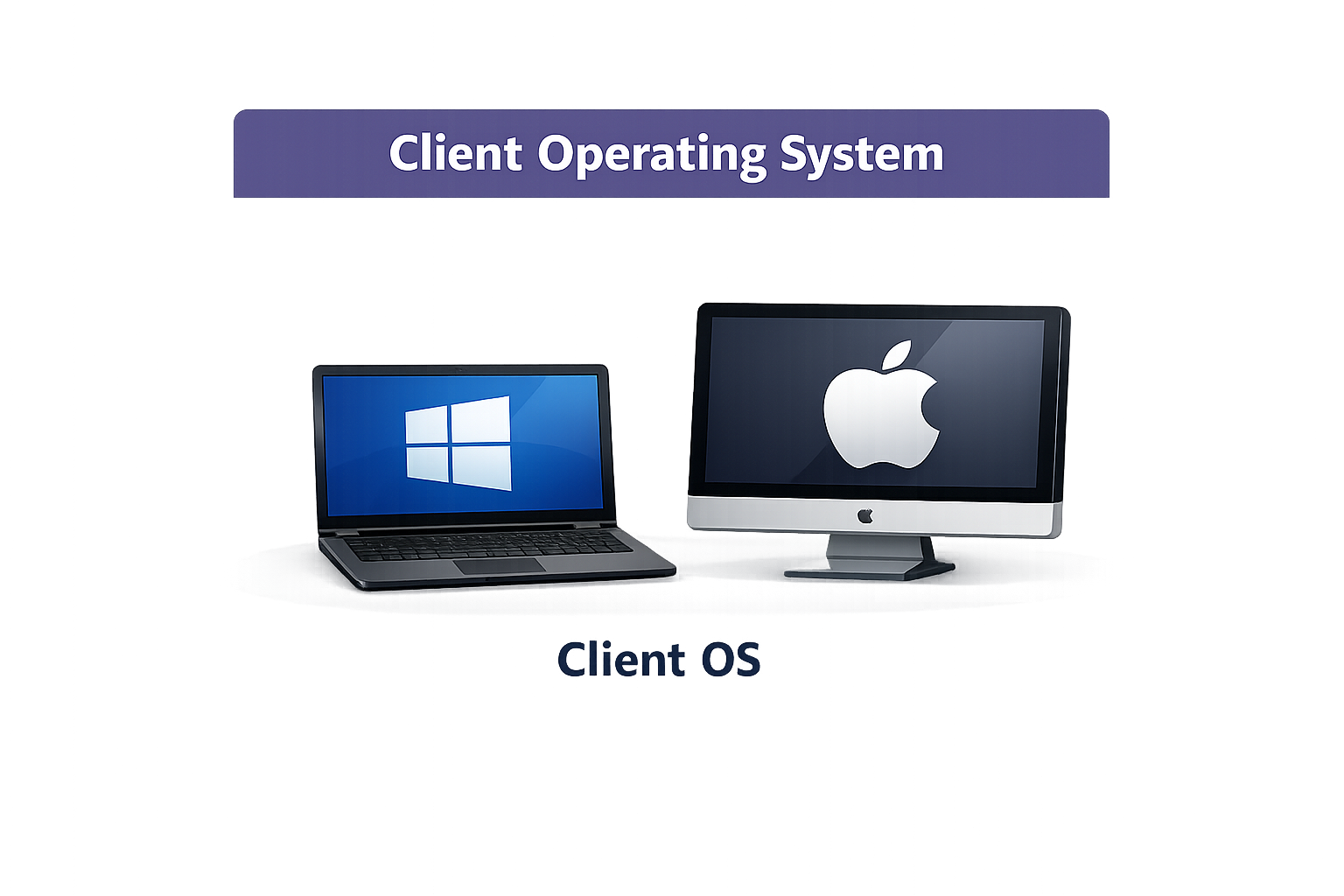
Installed on client devices like desktops, laptops, tablets, or smartphones.
Provides an interface for users to interact with applications and access resources (local or network-based).
Examples: Windows 10/11, macOS, Linux desktop distributions (like Ubuntu), Android, iOS.
Microsoft Windows
Windows 1.0: 1985
Windows 95: 1995
Windows XP: 2001
Windows 7: 2009
Windows 10: 2015
Windows 11: 2021
Apple macOS
Mac OS X 10.0 (Cheetah): 2001
macOS Mojave (10.14): 2018
macOS Monterey (12.0): 2021
macOS Ventura (13.0): 2022
Linux (Various Distributions)
Ubuntu 4.10 (Warty Warthog): 2004
Fedora Core 1: 2003
Linux Mint 1.0 (Ada): 2006
Google ChromeOS
ChromeOS: 2009
Android
Android 1.0 (Alpha): 2008
Android 14: 2023 (latest major release as of now)
1. Batch Operating System
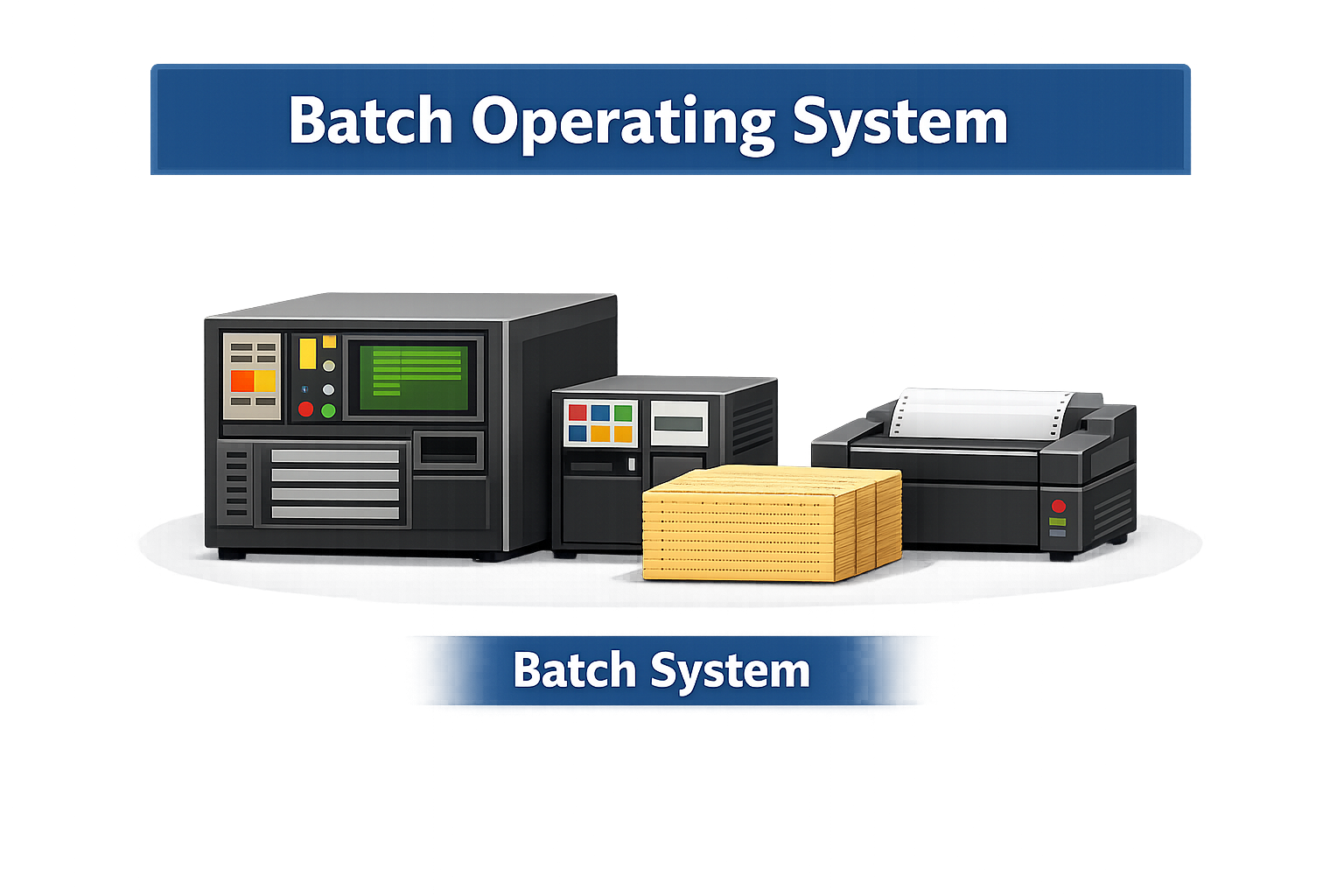
A batch operating system processes tasks in batches without direct user interaction. Jobs are prepared, queued, and executed sequentially by the system.
Use Case: Early computing systems where immediate user input wasn’t feasible.
Batch OS is still used today, though not on personal computers. It remains important in enterprise and large‑scale data environments:
Banking → Daily transaction settlements, interest calculations, and statement generation.
Payroll → Automatic salary processing for thousands of employees.
Telecom Billing → Monthly bill generation and usage summaries.
Government Data → Census updates, tax records, and voter lists.
Big Data Pipelines → Overnight processing of logs, analytics, and reports.
Scientific Research → Weather forecasting, simulations, and space research.
Key Point: Batch OS is not common for everyday users now, but it is deeply integrated into backend systems where repetitive, large‑scale jobs must run automatically without human interaction.

2. Time-Sharing Operating System
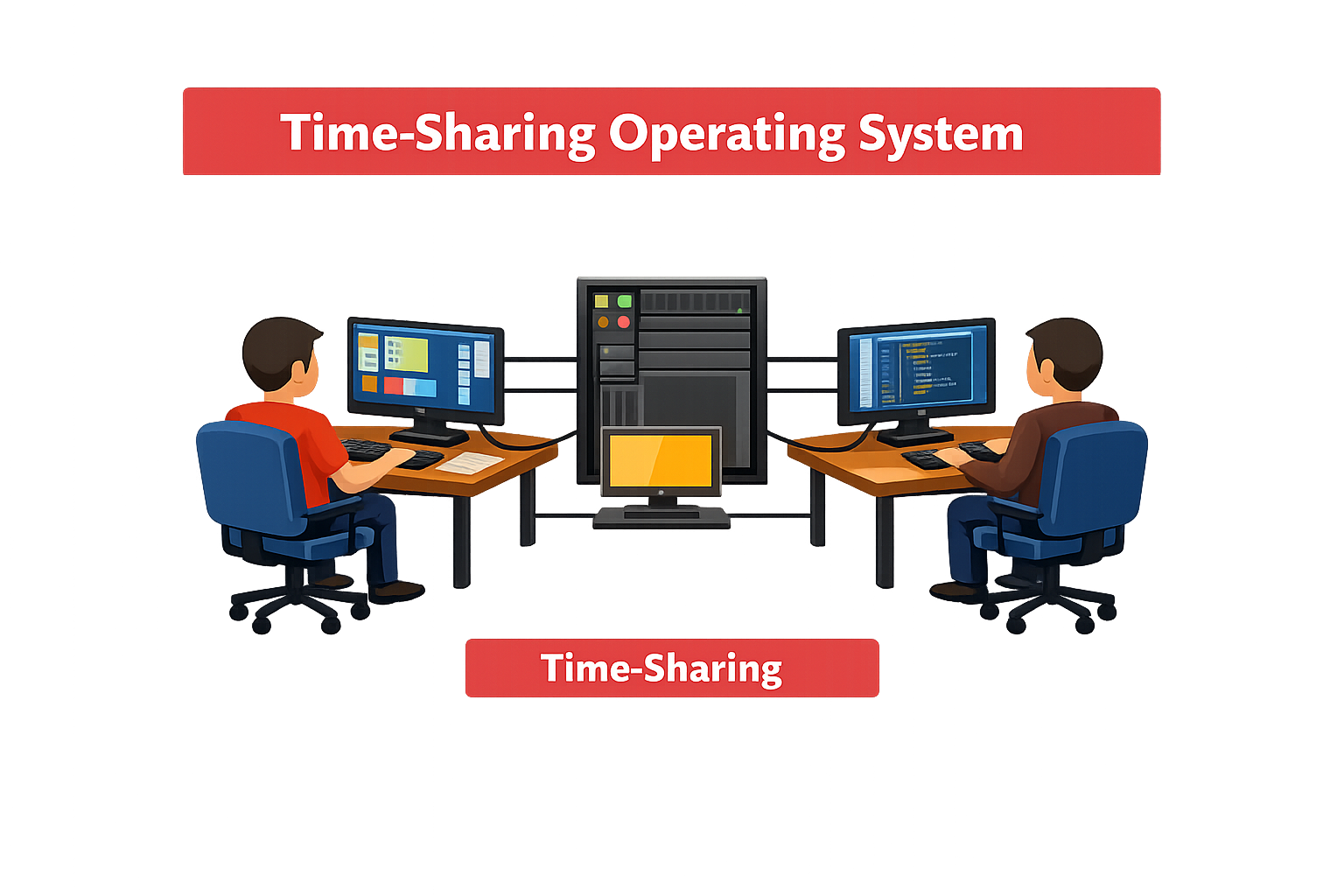
A time‑sharing operating system allows multiple users to use a single computer simultaneously by allocating small time slices of CPU time to each user.
Use Case: Educational institutions, early multi‑user environments.
Examples: UNIX, Windows.
Advantages: Fair resource allocation, quick response to each user.
Disadvantages: Overhead in task switching, security concerns with multiple users.
3. Distributed Operating System
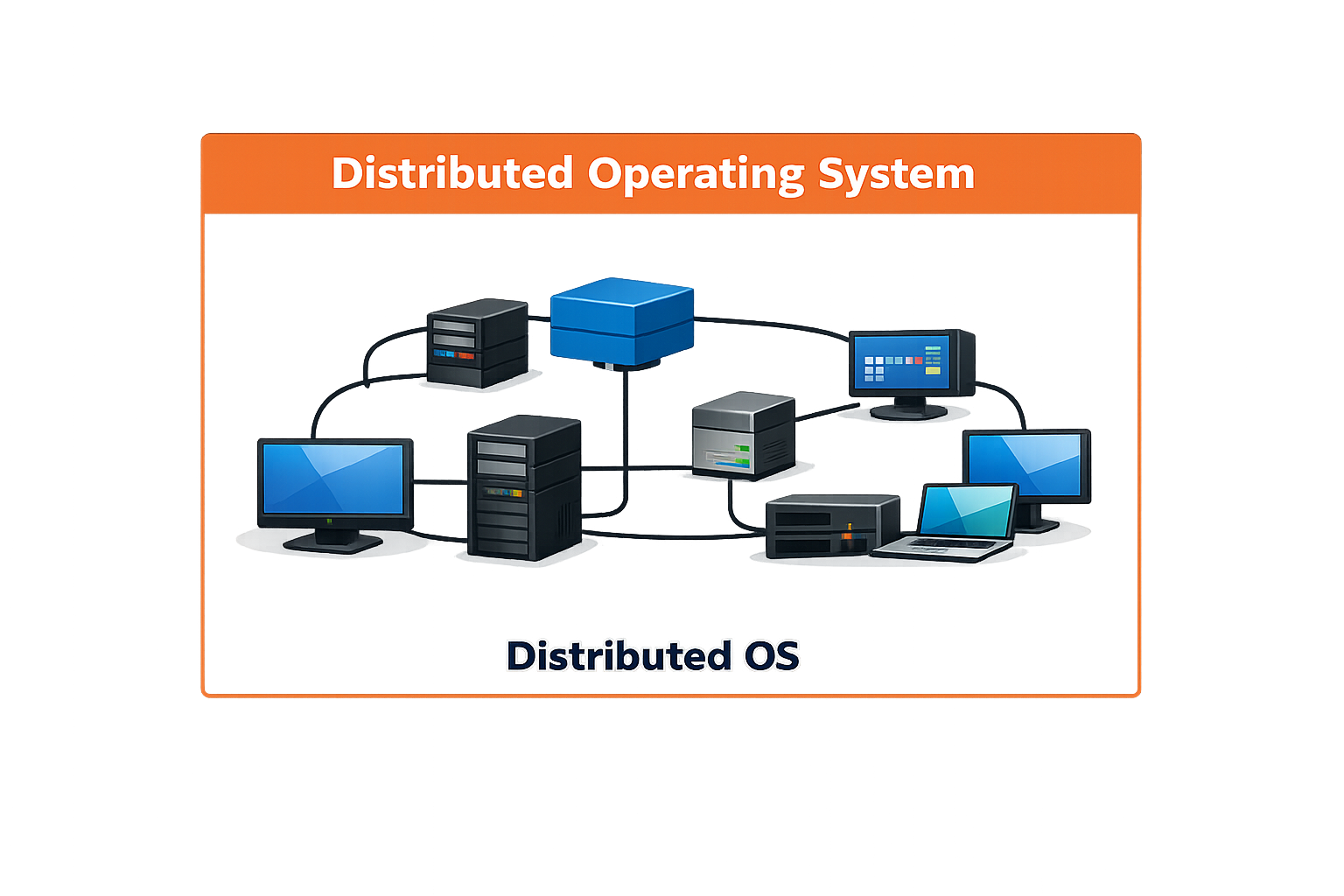
A distributed operating system is an OS that manages a collection of independent computers and makes them appear to the users as a single, unified system. It coordinates resource sharing, communication, and task execution across all machines to work together seamlessly.
Common Use Cases
Cloud Computing → Manages clusters of servers to provide seamless cloud services (e.g., Google Cloud, Microsoft Azure).
Data Centers → Controls thousands of servers for storage, processing, and networking.
Scientific Research → Used in simulations, weather forecasting, and space research requiring huge computing power.
Telecommunications → Handles distributed switching and routing systems.
E‑commerce Platforms → Supports large‑scale transaction systems like Amazon or Flipkart.
Banking Systems → Ensures secure, distributed transaction processing across multiple branches.
IoT Networks → Manages connected smart devices working as one ecosystem.
Key Point: Distributed OS is best where scalability, reliability, and resource sharing across multiple computers are required.
4. Network Operating System (NOS)
A Network Operating System is designed to manage networking tasks such as file sharing, printer access, and communication between multiple devices.
Use Case: Enterprise‑level networks, file servers, and communication systems.
Examples: Novell NetWare, Windows Server.
Advantages: Centralized control over network operations, security, and easy data sharing.
Disadvantages: Complex setup and maintenance, requires skilled administrators.
5. Real-Time Operating System (RTOS)
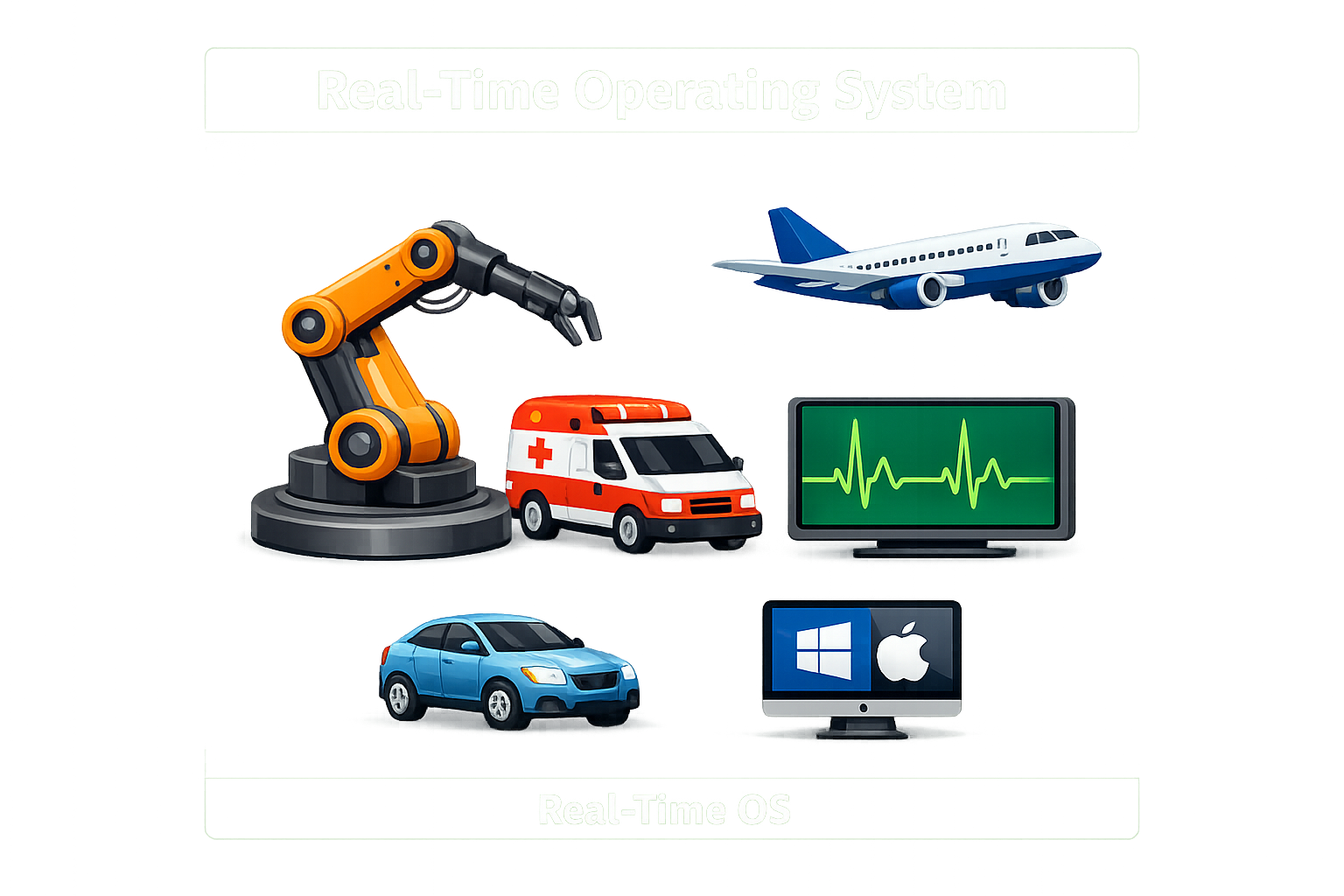
A real‑time operating system guarantees that processing occurs within a strict time constraint, making it crucial for time‑critical tasks.
Use Case: Robotics, aerospace, medical devices, IoT systems.
Examples: VxWorks, FreeRTOS.
Advantages: Predictable task execution, high reliability for time‑critical applications.
Disadvantages: Limited multitasking capability, expensive to implement.
6. Mobile Operating System
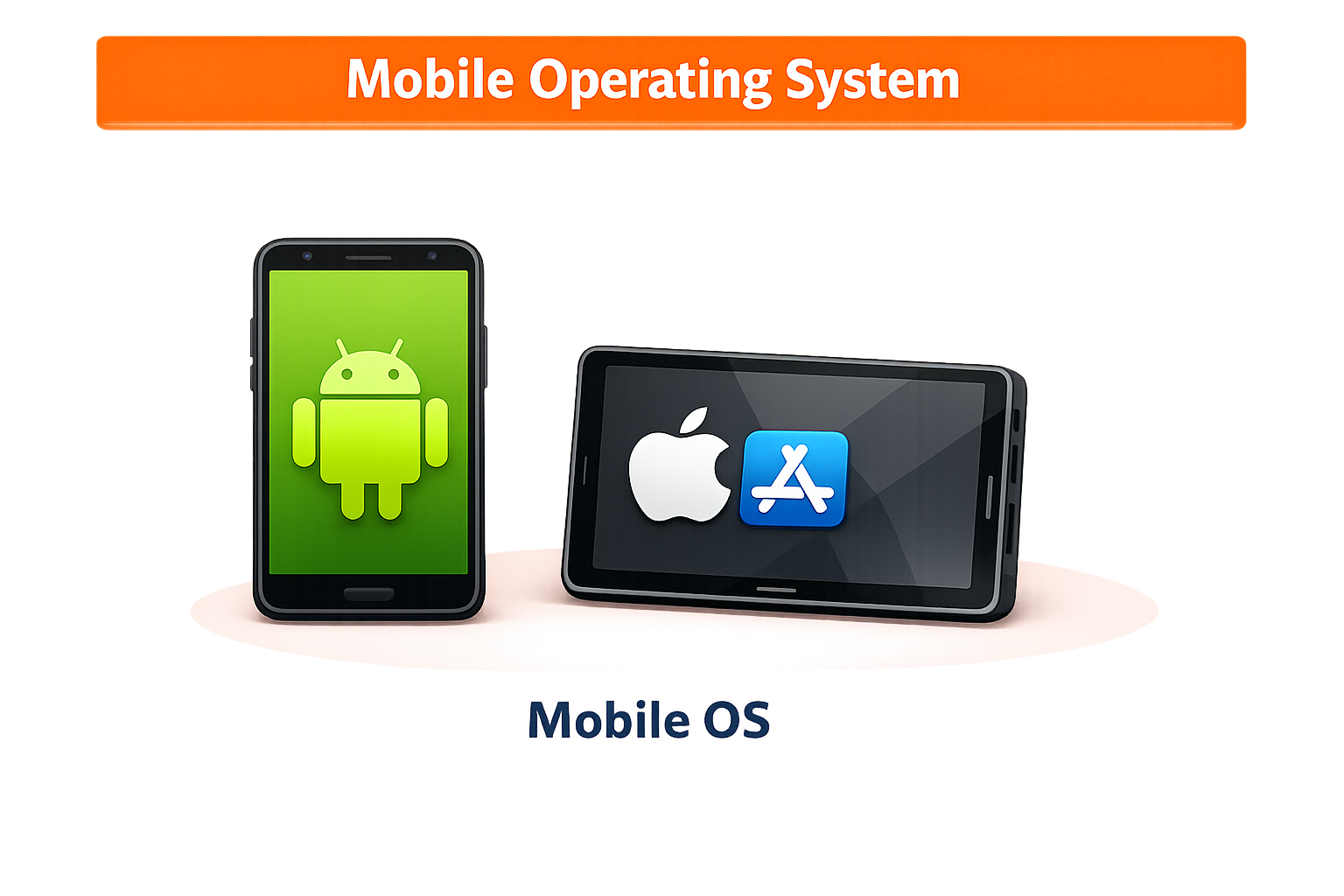
A mobile operating system is optimized for smartphones and tablets, featuring touch interfaces and app ecosystems for portable use.
Use Case: Consumer‑grade smartphones and tablets.
Examples: Android, iOS.
Advantages: Focused on user interaction and portability, provides access to a wide range of apps.
Disadvantages: Limited hardware compatibility, frequent updates required for security.
7. Desktop/Client Operating System
A client operating system is designed for personal use, typically on desktops and laptops, with graphical interfaces and productivity tools.
Use Case: Everyday computing, gaming, office work.
Examples: Windows, macOS, Linux (Ubuntu).
Advantages: User‑friendly with extensive software support, versatile for multiple use cases.
Disadvantages: Resource‑intensive, vulnerable to malware without proper security.
8. Embedded Operating System
An embedded operating system is specifically built to run on embedded systems within devices like appliances, cars, and industrial machines.
Use Case: Consumer electronics, automotive systems, medical equipment.
Examples: QNX, Embedded Linux.
Advantages: Highly optimized for specific hardware, low power consumption.
Disadvantages: Limited flexibility in updates or modifications, restricted to a narrow range of functions.
Batch Operating System 🔗 Batch OS Image
Time‑Sharing Operating System 🔗 Time‑Sharing OS Image
Real‑Time Operating System 🔗 Real‑Time OS Image
Distributed Operating System 🔗 Distributed OS Image
Network Operating System 🔗 Network OS Image
Client Operating System 🔗 Client OS Image
Embedded Operating System 🔗 Embedded OS Image
Mobile Operating System 🔗 Mobile OS Image
The interface of an operating system (OS)
The interface of an operating system (OS) is the medium through which users interact with the system to perform tasks. It determines how efficiently and intuitively users can control and utilize system resources. Operating systems typically have two main types of interfaces:
1. Graphical User Interface (GUI)
Description: The GUI uses graphical elements like windows, icons, menus, and buttons to represent actions and tasks.
Examples: Microsoft Windows, macOS, Android.
Features:
User-friendly with point-and-click functionality using a mouse, touchpad, or touchscreen.
Provides visual feedback for user actions.
Advantages:
Easy to learn, even for beginners.
Enhances productivity by simplifying multitasking.
Disadvantages:
Resource-intensive, requiring more memory and processing power.
2. Command-Line Interface (CLI)
Description: The CLI requires users to type specific commands to interact with the system.
Examples: UNIX Shell, PowerShell, Command Prompt.
Features:
Primarily text-based with commands entered manually.
Allows script writing for automating repetitive tasks.
Advantages:
Lightweight and consumes minimal resources.
Offers powerful control and flexibility for advanced users.
Disadvantages:
Steep learning curve for beginners.
Lack of visual elements can make it less engaging.
Some operating systems also feature Hybrid Interfaces that combine GUI and CLI, giving users the flexibility to switch between graphical and command-line environments. Examples include Linux distributions like Ubuntu, where users can use both a terminal (CLI) and a desktop environment (GUI).
As of 2025, the market share for desktop and laptop operating systems has evolved slightly:
Windows: Continues to dominate with approximately 71% market share, maintaining its position as the go-to OS for personal and professional use.
macOS: Holds around 16%, popular among creative professionals and users who value seamless integration with Apple devices.
Linux: Accounts for about 4%, favored by developers, tech enthusiasts, and those seeking open-source solutions
|
|
|
|---|---|---|
|
|
|
|
|
|
|
|
|
|
|
|
|
|
|
|
|
|
|
|
|
|
|
|
|
|
|
windows operating system
The Windows operating system is a family of operating systems developed by Microsoft. It is one of the most widely used operating systems in the world, known for its user-friendly interface, broad compatibility, and versatility across various devices.

Microsoft was founded on April 4, 1975 by Bill Gates and Paul Allen in Albuquerque, New Mexico. Today, it is one of the world’s most valuable companies, with a market capitalization of about $3.15 trillion (₹262 lakh crore) as of April 2026, ranking 4th globally behind Apple, Saudi Aramco, and Alphabet.
|
|
|
|
| |
|---|---|---|---|---|---|
|
|
|
|
| |
|
|
|
|
| |
|
|
|
|
| |
|
|
|
|
| |
|
|
|
|
| |
|
|
|
|
| |
|
|
|
|
| |
|
|
|
|
| |
|
|
|
|
| |
|
|
|
|
|
Key Features
Graphical User Interface (GUI): Windows is recognized for its simple GUI, which uses windows, icons, and menus to make computing accessible to a wide audience.
Compatibility: Works with a vast array of hardware and software, from personal computers to enterprise-level servers.
Multi-Tasking: Allows users to run multiple applications simultaneously.
Security: Includes features like Windows Defender, BitLocker, and regular updates to protect against cyber threats.
Support for Applications: Provides a platform for a wide range of software, including productivity tools, games, and utilities.
Networking: Built-in features for networking, file sharing, and remote access.
Popular Versions
Windows 95 (1995): Introduced the Start menu and taskbar, revolutionizing user interaction.
Windows XP (2001): Renowned for stability and usability; widely adopted in homes and businesses.
Windows 7 (2009): Improved performance and aesthetics, a fan favorite.
Windows 10 (2015): Brought features like Cortana, virtual desktops, and integration with Microsoft services.
Windows 11 (2021): Redesigned interface, better multitasking, and optimized for hybrid work.
Types of Windows Operating Systems
Client OS: For personal use (e.g., Windows 10, Windows 11).
Server OS: For enterprise and server management (e.g., Windows Server 2022).
Embedded OS: Used in specialized devices like ATMs or kiosks.
Why It's Popular
Windows became so widespread due to its ease of use, extensive support for software and hardware, and adaptability to both personal and professional environments. It caters to a broad audience, from casual users to IT professionals.
Types of OS Installation
1. Clean Installation
Meaning: Install Windows on a fresh hard drive or after deleting everything.
Use Case: When your system is slow, infected, or you want a fresh start.
Example: Installing Windows 11 on a new laptop with no previous OS.
2. Upgrade Installation
Meaning: Install a newer version of Windows over the old one, keeping files and apps.
Use Case: When you want to move from Windows 10 → Windows 11 without losing data.
Example: Upgrading Windows 10 Home to Windows 11 Home while keeping documents and apps.

3. Dual Boot Installation
Meaning: Install two operating systems on the same computer, and choose one at startup.
Use Case: When you want to use both Windows and another OS (like Linux) on the same PC.
Example: A student installs Windows 11 and Ubuntu Linux together, so they can use Windows for daily tasks and Linux for programming.

Windows + Linux Dual Boot
Rule: Always install Windows first, then Linux.
Reason: Windows overwrites the bootloader (GRUB). If Linux is installed after Windows, GRUB will detect both OS and let you choose at startup.
Example:
Install Windows 11 on your laptop.
Then install Ubuntu Linux → GRUB menu appears → choose Windows or Ubuntu at boot.
Dual Boot with Two Windows Versions
Rule: Install the older Windows version first, then the newer one.
Reason: Newer Windows versions (like Windows 11) recognize older ones and add them to the boot menu. Older versions don’t recognize newer ones.
Example:
Install Windows 7 first.
Then install Windows 11 → Boot menu lets you pick Windows 7 or Windows 11.
Step-by-Step: How to Install Windows Operating System
Step 1 – Download Windows Disk Image (ISO) (International Organization for Standardization)
Go to the official Microsoft website.
Download the Windows Media Creation Tool or Windows ISO file.
Save it on your computer. This file contains the Windows setup data.
Step 2 – Make a Bootable Pen Drive
Plug in a USB drive (minimum 8 GB).
Use software like Rufus or Media Creation Tool.
Select the downloaded ISO file.
Click Start to make the pen drive bootable. Now your USB is ready to install Windows.
Step 3 – Boot Your Computer
Insert the bootable pen drive into your PC or laptop.
Restart your computer.
Press the Boot Menu Key (depends on your brand):
How we can create bootable device
|
|
|
|---|---|---|
|
|
|
|
|
|
|
|
|
|
|
|
To compress means to reduce the size of files by packing them into a smaller archive (e.g., .rar or .zip).
Example: Compressing a folder before sending it by email.
Extract
To extract means to unpack or open a compressed file to access its original contents.
Example: Extracting a .rar file to view documents inside.
Virtualization in Computing
Virtualization is the process of creating a virtual version of a resource — such as hardware, storage, or an operating system — instead of using the physical version directly. It allows multiple virtual environments to run on a single physical machine.
Key Points
Done using a hypervisor (like VMware, VirtualBox, Hyper‑V).
Enables running multiple operating systems on one computer.
Improves resource utilization, flexibility, and scalability.
Virtual Machine (VM)
A Virtual Machine (VM) is a software‑based computer that runs inside a physical computer. It behaves like a real computer, with its own operating system, applications, and resources, but it shares the hardware of the host machine.
Key Points
Created using virtualization software (e.g., VMware, VirtualBox, Hyper‑V).
Each VM has its own CPU, memory, storage, and network interface (virtualized).
Multiple VMs can run on one physical computer at the same time.
Useful for testing, development, training labs, and running different OS environments.
Common Uses
Testing & Development: Roll back after testing software or patches.
Troubleshooting: Capture system state before making risky changes.
Training Labs: Restore VMs to a clean state for repeated practice.
How to Take a Snapshot (VMware Example)
Right-click on the VM.
Select Snapshot → Take Snapshot.
Provide a Name & Description.
|
|
|
|---|---|---|
|
|
|
|
|
|
|
|
|
|
|
|
|
|
|
| Aspect | Windows 10 | Windows 11 |
|---|---|---|
| Release Year | 2015 | 2021 |
| User Interface (UI) | Traditional design with a focus on rectangular elements. | Modern, rounded corners, redesigned Start menu in the center. |
| Start Menu | Left-aligned, live tiles for apps. | Centered, simpler design without live tiles. |
| Taskbar | Fully customizable. | Centered icons, less customization, no drag-and-drop (initially). |
| Performance | Designed for older and newer systems. | Optimized for faster performance with SSDs and modern processors. |
| Gaming Features | Basic support for gaming with Xbox app. | DirectStorage, AutoHDR, and Xbox Game Pass integration for enhanced gaming. |
| Multitasking | Standard snap feature with manual window resizing. | Snap layouts and groups for advanced multitasking. |
| Touchscreen Support | Basic support with no tablet-specific features. | Enhanced touchscreen experience and gestures. |
| Compatibility | Compatible with a wide range of older hardware. | Requires modern hardware like TPM 2.0 and secure boot. |
| Updates | Regular updates with extensive options for scheduling. | Smaller, faster updates with focus on efficiency. |
| Widgets | None (discontinued live tiles). | Reintroduced as a new feature, accessible from the taskbar. |
Summary of Changes:
Design Overhaul: Windows 11 features a more modern, streamlined interface.
Performance Enhancements: Better for SSDs and gaming due to technologies like Direct Storage.
Hardware Requirements: Windows 11 requires newer hardware, including TPM 2.0, making it less compatible with older devices.
Productivity and Multitasking: Improved multitasking with snap layouts and virtual desktops.
Windows 10 comes in multiple editions designed for different users and devices. The most common are Home, Pro, Enterprise, and Education, but there are also specialized versions like Windows 10 Mobile, Windows 10 IoT, and regional “N” editions without media features.
Major Windows 10 Editions
| Edition | Purpose / Audience |
|---|---|
| Windows 10 Home | For everyday consumers; includes core features like Cortana, Microsoft Store, and basic security. |
| Windows 10 Pro | For professionals and small businesses; adds BitLocker, Remote Desktop, and Group Policy management. |
Windows 10 Enterprise | For large organizations; advanced security, virtualization, and deployment tools. |
Windows 10 Education | For schools and universities; similar to Enterprise but tailored for academic use. |
Windows 10 Mobile | Designed for smartphones and small tablets (now discontinued). |
Windows 10 IoT | For embedded devices and Internet of Things hardware. |
Windows 10 S | Lightweight version focused on security and performance; runs only apps from Microsoft Store. |
Windows 10 N editions | Versions without Windows Media Player and related features (required by EU regulations). |
Windows 11 Editions
Windows 11 Home → Designed for everyday users. Includes the new interface, gaming features like DirectStorage and AutoHDR, and integration with Microsoft Store.
Windows 11 Pro → Adds business features such as BitLocker encryption, Remote Desktop, Hyper-V virtualization, and Group Policy management.
Windows 11 Enterprise → Built for large organizations. Offers advanced security, deployment, and management tools (like AppLocker, DirectAccess, and Windows Defender Credential Guard).
Windows 11 Education → Similar to Enterprise but tailored for schools and universities, with simplified management for IT admins.
Windows 11 Pro Education → A variant of Pro with settings optimized for classroom environments.
Windows 11 Pro for Workstations → For high-performance hardware setups. Supports ReFS (Resilient File System), persistent memory, and advanced CPUs for heavy workloads.
Windows 11 Mixed Reality → Specialized edition for VR/AR devices and immersive experiences.
Windows 11 N Editions → Versions without media features like Windows Media Player (required by EU regulations).
Windows 11 Home
Designed for everyday consumers.
Includes all the core features: new Start Menu, Microsoft Store, gaming optimizations (DirectStorage, AutoHDR), and security basics like Windows Hello.
Best suited for personal use, students, and casual users.
Windows 11 Pro
Built for professionals and small businesses.
Includes everything in Home plus advanced features:
BitLocker → Full disk encryption for better security.
Remote Desktop → Connect to your PC remotely.
Hyper-V → Virtualization to run multiple operating systems.
Group Policy Management → Control settings across multiple PCs in a network.
Assigned Access & Enterprise Mode IE → Useful for business environments.
Best suited for business users, IT admins, and power users.
Genuine Windows vs Pirated Windows
⚠️ Pirated Windows
Definition: An unauthorized copy of Windows that is illegally distributed or activated using cracks, loaders, or fake keys.
Risks:
No official updates or security patches.
High chance of malware, spyware, or backdoors.
Legal consequences (software piracy is against the law).
System instability and frequent crashes.
Use case: Often chosen to avoid paying, but it compromises security, reliability, and legality.
✅ Genuine Windows
Definition: An officially licensed copy of Windows purchased from Microsoft or authorized resellers.
Benefits:
Regular security updates and feature upgrades.
Access to Microsoft Store and official apps.
Reliable performance and stability.
Legal protection and support from Microsoft.
Use case: Recommended for personal, business, and professional use where security and compliance matter.
🔑 Major Difference
Pirated Windows → Unsafe, illegal, unsupported.
Genuine Windows → Safe, legal, supported, and future‑proof.

In computer hardware, SoC (System on Chip) means a single integrated chip that combines most or all the essential components of a computer system into one microchip.
Components inside an SoC
CPU (Central Processing Unit) – the main processor
GPU (Graphics Processing Unit) – for graphics and image processing
Memory (RAM, ROM, Flash) – storage and working memory
I/O Controllers – USB, HDMI, Wi-Fi, Bluetooth, etc.
DSP (Digital Signal Processor) – for audio, video, and signal processing
Network Interfaces – Ethernet, wireless communication
Power Management – voltage regulators, timers, oscillators
Where SoCs are used
Smartphones, tablets, smartwatches
Embedded systems (IoT devices, smart appliances)
Laptops/netbooks (compact designs)
Automotive systems and edge computing devices
Disadvantages
Less modular (cannot replace individual components easily)
Limited flexibility compared to traditional multi-chip systems
In short: SoC = CPU + GPU + Memory + I/O + other controllers all packed into one chip, mainly used in mobile and embedded devices for efficiency.
What is TPM?
TPM (Trusted Platform Module) is a dedicated security chip built into the motherboard or CPU.
It stores encryption keys, passwords, and certificates securely.
It ensures the system boots in a trusted state and protects against tampering.
Definition user account
A user account in Windows is a profile that uniquely identifies a person using the computer. It contains their username, password, files, settings, and permissions, allowing multiple people to share the same device while keeping their data and preferences separate.
A user account is a collection of information that Windows uses to determine:
Who is using the computer.
What files, folders, and apps they can access.
What system changes they are allowed to make.
Each account has a username and usually a password for login.
Types of User Accounts in Windows
Updated Windows Account Hierarchy
Local Accounts (Offline, Device-Based)
Administrator Account → Full control over system and users.
Standard Account → Limited permissions for daily tasks.
Guest Account (Older Versions) → Temporary, restricted access.
Domain Accounts (Network-Based, Enterprise)
Domain Account (Active Directory / AD DS) → Managed by IT administrators within an organization.
Used in office networks and servers.
Controlled through Group Policy and centralized authentication.
Cloud Accounts (Online, Cloud-Linked)
Microsoft Account → Personal cloud account linked to Outlook/Hotmail.
Syncs settings, files, and apps across devices.
Enables access to OneDrive, Microsoft Store, and Office 365.
Ideal for home or personal users.
Azure AD Account (Microsoft Entra ID) → Cloud-based enterprise identity for organizations.
Used with Microsoft 365, Azure services, and business apps.
Supports Single Sign-On (SSO) and Conditional Access.
Why User Accounts Matter
Personalization → Each user gets their own desktop, documents, and preferences.
Security → Prevents unauthorized access to files and system settings.
Separation → Keeps work, school, and personal data distinct.
Parental control → Allows parents to monitor or restrict children’s usage.
Steps to Create a User Account in Windows 10/11
Method 1: Using Settings
Press Windows + I to open Settings.
Go to Accounts → Family & other users.
Under Other users, click Add account.
Choose one of the following:
Microsoft account → Enter an email (Outlook, Hotmail, or any Microsoft-linked email).
Local account → Click I don’t have this person’s sign-in information → Add a user without a Microsoft account.
Enter a username and password (optional for local accounts).
Click Next → The account will be created
Press Windows + I to open Settings.
Go to Accounts → Family & other users.
Under Other users, click Add account.
Choose one of the following:
Microsoft account → Enter an email (Outlook, Hotmail, or any Microsoft-linked email).
Local account → Click I don’t have this person’s sign-in information → Add a user without a Microsoft account.
Enter a username and password (optional for local accounts).
Click Next → The account will be created
create a User Account via CMD
Open Command Prompt as Administrator
Press Windows + R, type cmd, then press Ctrl + Shift + Enter to run as administrator.
Create a new user
Use the command: net user Username Password /add
Open Command Prompt as Administrator
Press Windows + R, type
cmd, then press Ctrl + Shift + Enter to run as administrator.
Create a new user Use the command: net user Username Password /add
kiosk users in Windows. A kiosk user is a special account used in Assigned Access / Kiosk Mode, where the PC runs only one app (like a browser, or signage app).
🖥️ Where to Find / Count Kiosk Users in Windows
Settings (Windows 10/11)
Go to Settings → Accounts → Family & other users.
Scroll down to Set up a kiosk.
Here you’ll see any kiosk accounts created.
Each kiosk account is listed separately, so you can count them directly.
One‑Word Answer Questions
Which OS was created by General Motors in the 1950s?
Which OS was developed at Bell Labs in 1969?
Which Microsoft OS launched in the early 1980s?
Which Apple OS introduced GUI in 1984?
Which Windows version launched in 1995?
Which Windows version introduced the Start menu?
Which Windows version was released in 2001?
Which Windows version was released in 2009?
Which Windows version was released in 2015?
Which Windows version was released in 2021?
Which macOS version was called Cheetah?
Which macOS version launched in 2018?
Which macOS version launched in 2021?
Which macOS version launched in 2022?
Which Google OS launched in 2009?
Which mobile OS was released by Google in 2008?
Which Apple mobile OS powers iPhones?
Which OS type processes jobs sequentially?
Which OS type uses time slices for multiple users?
Which OS type manages multiple computers as one system?
Which OS type is designed for servers and networking?
Which OS type guarantees strict timing for tasks?
Which OS type is optimized for smartphones?
Which OS type is used on desktops and laptops?
Which OS type is built for appliances and cars?
Which OS interface uses icons and windows?
Which OS interface requires typed commands?
Which OS interface combines GUI and CLI?
Which NOS was released in 1983?
Which Microsoft server OS launched in 1993?
Which Microsoft server OS launched in 2008?
Which Microsoft server OS launched in 2021?
Which Microsoft server OS launched in 2024?
Which UNIX distribution launched in 1983?
Which UNIX distribution launched in 1991?
Which Windows edition is for everyday consumers?
Which Windows edition is for professionals?
Which Windows edition is for large organizations?
Which Windows edition is for schools?
Which Windows edition was discontinued for smartphones?
Which Windows edition is for embedded devices?
Which Windows edition is lightweight and runs only Store apps?
Which Windows edition excludes media features in EU?
Which Windows 11 edition is for high‑performance hardware?
Which Windows 11 edition is tailored for schools?
Which Windows 11 edition is optimized for classrooms?
Which Windows 11 edition is for VR/AR devices?
Which Windows 11 edition excludes media features?
Which Windows security tool provides disk encryption?
Which Windows tool allows remote PC connection?
What Virtualization Means in Windows
Virtualization allows your Windows device to emulate another operating system (like Linux or Android) or run multiple virtual machines on the same hardware.
It’s essential for developers, IT admins, and advanced users who need isolated environments for testing, security, or running apps that require different OS versions.

Cost: Hyper‑V is free with Windows Pro/Enterprise; VMware usually requires a license.
Platform: Hyper‑V is Windows‑only; VMware supports Windows, Linux, and bare‑metal.
Ease of use: Hyper‑V is simpler for Windows users; VMware offers more flexibility for mixed environments.
Virtual machines (VMs) provide cost savings, flexibility, isolation, scalability, and security by allowing multiple operating systems and applications to run on a single physical machine.
Key Benefits of Virtual Machines
Resource efficiency: Multiple VMs share the same physical hardware, reducing waste and improving utilization.
Cost savings: Fewer physical servers are needed, lowering hardware, energy, and maintenance costs.
Isolation: Each VM runs independently, so failures or malware in one VM don’t affect others.
Flexibility: VMs can run different operating systems (Windows, macOS, Android, etc.) on the same hardware.
Scalability: Easy to add or remove VMs as workloads change, supporting cloud and enterprise growth.
Disaster recovery: VM snapshots and backups make recovery faster and more reliable.
Testing & development: Developers can test software in isolated environments without affecting the host system.
Security: VMs provide sandboxing, reducing risks of malware spreading across systems.
Portability: VM images can be moved across servers or cloud platforms easily.
Legacy support: Old applications can run on legacy OS versions inside VMs without needing outdated hardware

Disk Management is a Windows feature that provides a graphical interface to manage hard drives and storage devices.
Why it’s a Feature
It comes built-in with Windows (no extra software needed).
Provides system-level control over disks and partitions.
Accessible via Start → Disk Management or
diskmgmt.msc.
What You Can Do with This Feature
Create partitions
Format drives
Assign/change drive letters
Shrink or extend volumes
Delete partitions
Initialize new disks
- A disk partition is a logical division of a physical hard drive into separate sections, each of which acts like an independent disk to the operating system.
- Purpose: Organize data, install multiple operating systems, separate system files from user files, and simplify backup/recovery.
Types:
Primary Partition → Can host an OS or main data.
Extended Partition → Can be subdivided into logical drives.
Partition Styles:
MBR (Master Boot Record) → Supports up to 4 primary partitions.
GPT (GUID Partition Table) → Supports larger disks and up to 128 partitions.
Data Organization → Keeps system files, personal files, and backups in separate sections for easy management.
Multi-OS Installation → Allows installing multiple operating systems (e.g., Windows + Linux) on the same disk.
Improved Performance → Smaller partitions can reduce file fragmentation and improve read/write speed.
Backup & Recovery → Easier to back up or restore specific partitions without affecting the whole disk.
Security & Privacy → Sensitive data can be stored in a separate partition, reducing risk of accidental deletion.
Steps to Hide a Partition:
Open Disk Management
Press Windows + R, type
diskmgmt.msc, and press Enter.
Locate the Partition
Find the drive/partition you want to hide.
Remove Drive Letter
Right-click the partition → select Change Drive Letter and Paths.
Click Remove → confirm.
The partition will no longer show up in This PC or Explorer.
To Unhide Later
Go back to Disk Management.
Right-click the hidden partition → Change Drive Letter and Paths → Add.
Assign a new drive letter, and it will reappear.
Advantages of Hiding a Partition
Data Security → Prevents unauthorized users from easily accessing sensitive files.
System Protection → Hides system partitions (like recovery drives) so users don’t accidentally delete or modify important files.
Organizational Control → Keeps partitions reserved for backups or special use hidden from everyday view.
FAT32 → Older Windows systems, USB drives.
NTFS → Modern Windows systems, supports permissions & encryption.
ext4 → Common in Linux.
APFS → Apple macOS and iOS devices.
|
|
|
|
|---|---|---|---|
|
|
|
|
|
|
|
|
|
|
|
|
|
|
|
|
|
|
|
|
|
|
|
|
|
|
|
|
|
|
|---|---|---|---|---|---|
|
|
|
|
|
|
|
|
|
|
|
|
CRC (Cyclic Redundancy Check) is an error-detecting code used in digital networks and storage devices to check the integrity of data.
It ensures that the data received or stored is the same as the data sent, without corruption.
A BIOS style (firmware interface) is the system software that initializes hardware during boot and provides runtime services for operating systems. Windows supports two styles: Legacy BIOS and UEFI.
| Type | Full Form | Partition Style Supported | Disk Size Limit | Features | Best Use |
|---|---|---|---|---|---|
| Legacy BIOS | Basic Input Output System | MBR (Master Boot Record) | Up to 2 TB | Old standard, text-only interface, slower boot, no advanced security | Older PCs, small disks |
| UEFI | Unified Extensible Firmware Interface | GPT (GUID Partition Table) | More than 2 TB (up to 9.4 ZB) | Modern GUI interface, faster boot, Secure Boot, supports large disks, pre-boot apps | Modern PCs, large disks |
Unit Size Bit 0 or 1 Nibble 4 bits Byte 8 bits Kilobyte (KB) 1,024 Bytes Megabyte (MB) 1,024 KB Gigabyte (GB) 1,024 MB Terabyte (TB) 1,024 GB Petabyte (PB) 1,024 TB Exabyte (EB) 1,024 PB Zettabyte (ZB) 1,024 EB Yottabyte (YB) 1,024 ZB
PASSWORD BREAK
| Unit | Size | Explanation |
|---|---|---|
| Bit | Smallest unit (0 or 1) | Binary digit |
| Nibble | 4 bits | Half a byte |
| Byte | 8 bits | Stores one character (like “A”) |
| Kilobyte (KB) | 1,024 bytes | Small text file |
| Megabyte (MB) | 1,024 KB | MP3 song ≈ 3–5 MB |
| Gigabyte (GB) | 1,024 MB | Movie ≈ 1–2 GB |
| Terabyte (TB) | 1,024 GB | Large hard drive |
| Petabyte (PB) | 1,024 TB | Data centers |
| Exabyte (EB) | 1,024 PB | Global internet traffic scale |
| Zettabyte (ZB) | 1,024 EB | Massive cloud storage |
| Yottabyte (YB) | 1,024 ZB | Theoretical future scale |

| Windows Edition | BitLocker Availability | Notes / Features |
|---|---|---|
| Windows Home | ❌ Not Available | Only basic device encryption (limited) |
| Windows Pro | ✅ Available | Full drive encryption, BitLocker To Go, TPM support |
| Windows Education | ✅ Available | Same as Pro, plus centralized management for schools |
| Windows Enterprise | ✅ Available | Advanced management, network unlock, group policy integration |
Go to Control Panel → Manage BitLocker.
Select the drive you want to encrypt.
Click Turn on BitLocker.
Choose an unlock method (password/PIN/USB).
Save the recovery key safely.
Select encryption type (used space only or entire drive).
Click Start Encrypting.
Disk Quota – Definition
A disk quota is a storage allocation limit applied to users, groups, or projects on a file system.
It ensures fair usage of storage resources and prevents any single user from consuming all available space.
Types of Quotas
Disk space (block quota): Limits the amount of storage used.
Number of files (inode quota): Limits how many files/directories can be created.
Soft quota: A warning level; users are notified when nearing the limit.
Hard quota: A strict limit; users cannot exceed it.
- ⚙️ Configuration Steps
Open File Explorer → Press
Windows + E.Right-click the Drive (e.g., C:) → Select Properties.
Go to Quota Tab → Click Show Quota Settings.
Enable Quota Management → Check:
Enable quota management
Deny disk space to users exceeding quota limit (optional, makes it strict).
Set Limits →
Select Limit disk space to: and enter the maximum storage (e.g., 200 GB).
Set a Warning level (e.g., 150 GB) so users get notified before hitting the limit.
Apply Settings → Click Apply → OK.
For Specific Users →
In Quota Settings, click Quota Entries.
Add a new user and assign custom limits.
Example: User A → 50 GB, User B → 100 GB.
Restart PC → Changes take effect after restart.
Temp → This is the general temporary folder where Windows and applications store short‑term files.
%Temp% → This is an environment variable that points directly to the current user’s Temp folder. Typing
%temp%in the Run dialog (Win+R) opens it.Prefetch → This folder stores prefetch data that helps Windows load frequently used applications faster.
| Feature | CMD | PowerShell |
|---|---|---|
| Origin | Legacy tool from MS-DOS era | Introduced in 2006, built on .NET |
| Output | Plain text | Objects with properties & methods |
| Commands | Simple commands & batch files | Advanced cmdlets, scripting language |
| Use Cases | File management, quick diagnostics, legacy support | Automation, system administration, cloud integration |
| Flexibility | Limited to basic tasks | Highly flexible, supports remote management & complex scripts |
| Integration | Works with Windows commands only | Deep integration with Windows + .NET + WMI |
| Best For | Beginners, troubleshooting, recovery | IT pros, administrators, automation, enterprise tasks |
CMD is lightweight, simple, and good for basic commands or legacy scripts.
PowerShell is modern, powerful, and designed for automation, scripting, and enterprise-level management.
- cd → Change directoryExample:
cd Documents - dir → List files and folders in the current directoryExample:
dir - mkdir → Create a new folderExample:
mkdir MyFolder - del → Delete a fileExample:
del file.txt - copy → Copy files from one location to anotherExample:
copy file.txt D:\Backup - move → Move files to another locationExample:
move file.txt D:\Data - cls → Clear the screenExample:
cls - exit → Close the Command PromptExample:
exit - ipconfig → Show network configurationExample:
ipconfig - ping → Test network connectivityExample:
echo → Display messages or turn command echoing on/off Example:
echo Hello Worldtype → Show the contents of a text file Example:
type notes.txtattrib → Change file attributes (read-only, hidden, etc.) Example:
attrib +r file.txtchkdsk → Check disk for errors Example:
chkdsk C:sfc → System File Checker (repairs corrupted system files) Example:
sfc /scannowtasklist → Show running processes Example:
tasklisttaskkill → Kill a running process Example:
taskkill /IM notepad.exe /Fshutdown → Shut down or restart the computer Example:
shutdown /r /t 0netstat → Show active network connections Example:
netstat -annslookup → Query DNS records Example:
nslookup google.comfc → Compare two files Example:
fc file1.txt file2.txtassoc → Display or change file associations Example:
assoc .txt=txtfilecolor → Change text and background color in CMD Example:
color 0A(green text on black background)comp → Compare contents of two files Example:
comp file1.txt file2.txtdriverquery → List all installed drivers Example:
driverqueryhostname → Display the computer’s name Example:
hostnamenet → Manage network resources (users, shares, services) Example:
net userpath → Display or set search path for executables Example:
pathprompt → Change the CMD prompt text Example:
prompt MyPC$Gset → Display, set, or remove environment variables Example:
set PATHsysteminfo → Show detailed system configuration Example:
systeminfover → Show Windows version Example:
verwmic → Windows Management Instrumentation Command-line (advanced system info) Example:
arp → Show or modify ARP table Example:
arp -abootcfg → Edit boot configuration (older Windows versions) Example:
bootcfg /querycipher → Manage encryption on NTFS drives Example:
cipher /e file.txtdiskpart → Disk partition management tool Example:
diskpartdriverquery → List installed drivers Example:
driverquery /vnetsh → Configure network settings Example:
netsh wlan show profilespathping → Network path + ping test Example:
pathping google.comreg → Access Windows Registry from CMD Example:
reg query HKCU\Softwarerobocopy → Advanced file copy tool Example:
robocopy C:\Data D:\Backup /MIRsc → Manage Windows services Example:
sc queryschtasks → Schedule tasks Example:
schtasks /create /tn "Backup" /tr backup.bat /sc daily /st 10:00whoami → Show current logged-in user Example:
whoamiShutdown: shutdown /s /t 0 Restart: shutdown /r /t 0 Logoff: shutdown /l
Read → Allows viewing file contents.
Write → Allows modifying or adding data.
Read & Execute → Allows running executable files.
Modify → Allows reading, writing, and deleting files.
Full Control → Complete access, including changing permissions.
How to Set Permissions
Right-click file/folder → Properties
Go to Security tab
Click Edit → Add/Remove users or groups
Assign permissions (Allow/Deny)
Windows activation is the process that verifies your copy of Windows is genuine and properly licensed. It links either a product key (25‑character code) or a digital license to your computer’s hardware configuration.
Product Key → Comes with boxed copies, OEM PCs, or authorized purchases.
Digital License → Linked to your Microsoft account; doesn’t require entering a key.
Pirated Windows
A copy of Windows that is illegally distributed or activated without a genuine Microsoft license.
How it works:
Using cracked product keys.
Modifying activation files (KMS activators, loaders).
Downloading Windows ISO from unofficial sources.
Risks:
❌ No official updates or security patches.
❌ Higher chance of malware/viruses.
❌ Legal issues (software piracy).
❌ System instability and crashes.
Difference from Genuine Windows:
Genuine Windows → Activated via Microsoft product key or digital license.
Pirated Windows → Activated via illegal cracks, often unstable.
Pirated Windows Usage Statistics (2026)
Global Piracy Rate (all software): ~40% of software in use worldwide is pirated.
Windows Share: Windows accounts for ~79% of pirated desktop software installs.
Annual Losses: Software piracy costs the industry ~$68 billion per year.
Demographics:
68% of pirates are aged 18–34.
72% are employed individuals.
29% are students.
Distribution: 82% of pirated software is spread via peer‑to‑peer (P2P) networks.
Top Piracy Hotspot Countries (2025–2026)
According to Revenera’s compliance intelligence data:
China
Russia
India
United States
Brazil
Germany
Vietnam
Hong Kong
France
Iran
Risks of Using Pirated Windows
❌ No official updates or security patches.
❌ Malware infections and data theft.
❌ Legal penalties (average fines ~$45,000 per case).
❌ System instability and crashes.
Why Microsoft Doesn’t Take Action Against Every Pirated Windows User
Scale Problem
Nearly 40% of global software is pirated, and Windows is the biggest victim.
Tracking every single user worldwide is technically impossible — billions of devices, many offline or hidden behind networks.
Legal & Jurisdiction Limits
Microsoft can’t directly prosecute individuals in every country.
Laws differ: in some regions, enforcement against end‑users is weak or nonexistent.
Instead, they target large distributors of pirated copies.
Business Strategy
Microsoft focuses on enterprise compliance (companies, schools, governments) because piracy there causes bigger financial losses.
For individuals, they often push low‑cost or free upgrade offers (like Windows 10 free upgrade from 7/8).
Technical Controls
Pirated Windows copies often show “Activate Windows” watermark.
Restricted personalization (no themes, wallpapers).
No guaranteed security updates.
Microsoft uses Windows Genuine Advantage (WGA) checks to detect piracy.
Indirect Action
Instead of punishing individuals, Microsoft makes pirated copies less useful and less secure, encouraging users to switch to genuine versions.
They also partner with governments (like India, China) to promote legal software adoption.



Comments
Post a Comment